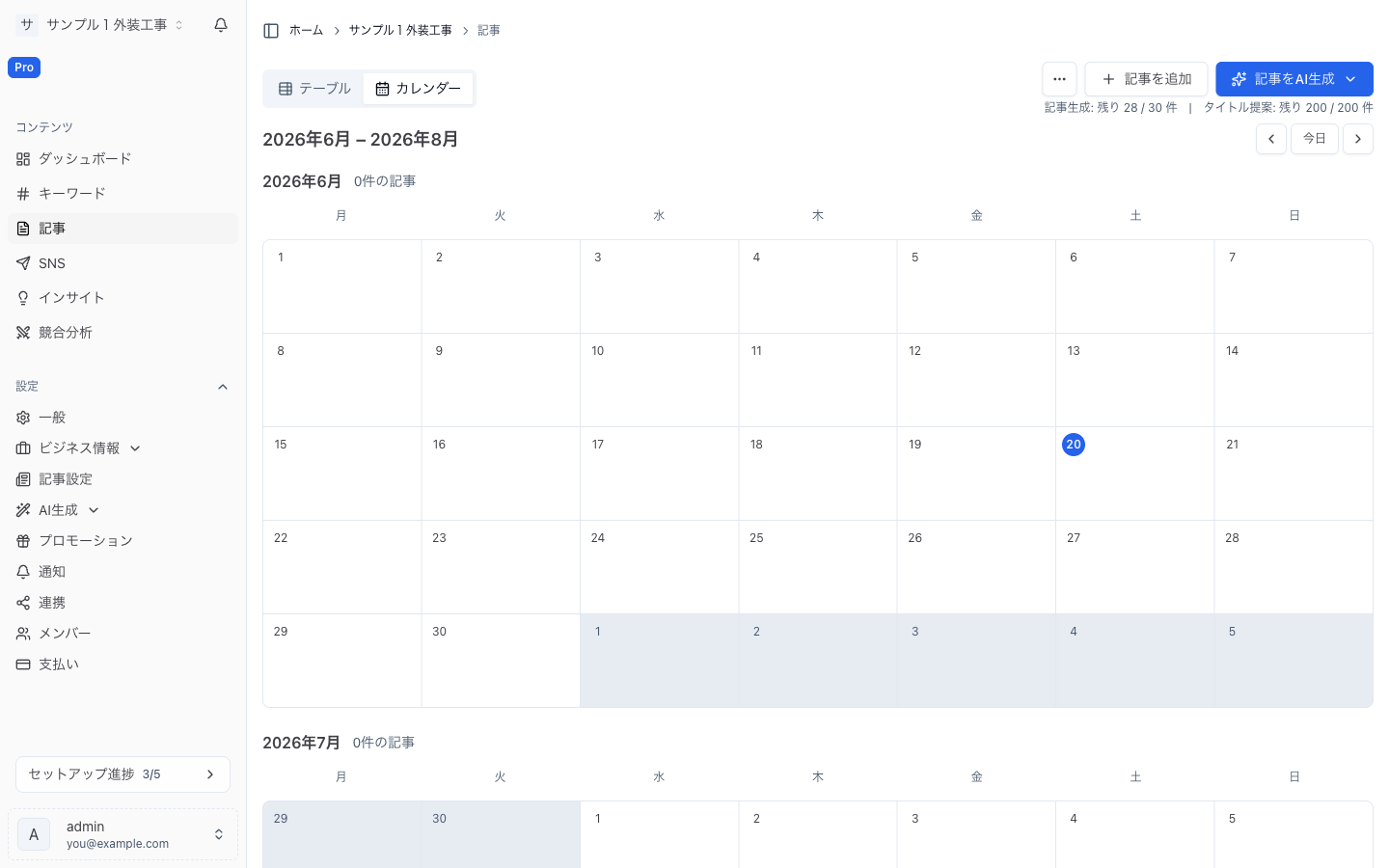
The Content Calendar
Read your publishing pipeline at a glance and reschedule, generate, or unschedule items right from the calendar grid.
The content calendar is the home base for everything time-based in RankTurn. It shows the current month plus the next two months, stacked top to bottom in one continuous view, so your whole upcoming pipeline is visible without flipping pages. Each month displays an article count next to its title so you can quickly gauge how full that month is.
Use the left/right arrows in the header to slide the three-month window forward or back one month at a time, or click Today to jump straight back to the current month. The arrows move the entire window together, so the next two months always follow whichever month you anchor on.
Three Item Types
The calendar shows three different kinds of items on the same day cells. They look distinct on purpose, because they behave differently.
| Item | What it represents | Appearance |
|---|---|---|
| Scheduled article | An article that has a publish date set. It may still be a Draft, waiting to be written, being written now, finished and waiting to go live, or already Published. | Shows the article's status (Draft, Scheduled, Published, and so on), its title (links to the article), the destination platform logos, and — when known — the keyword's search volume and difficulty. |
| Publication | A scheduled publish to one platform. There's one for each article-and-platform destination. | Shows the publishing status, the platform logo, and the article title (links to the article). |
| Series topic | An upcoming topic from an automatic Series, shown on its future publish slot before it has become an article. | Marked with a series topic badge, a left accent bar, and a muted fill. It shows the series name and upcoming issue number and links to the series — there is no article yet. |
A single article can be published to more than one platform, and each destination is tracked separately. When a publish is retried, the calendar shows just one card per article-and-platform — preferring a successful result, then one in progress, then the most recent attempt — so you never see duplicate "Published" or "Failed" cards for the same destination.
Drag-to-Reschedule
You can move most cards to a new day simply by dragging them.
- Grab a card by its drag handle (the grip icon on the left of the card).
- Drop it on the target day. The day highlights while it's a valid drop target.
- The card moves immediately, and the new date is saved for you.
A few rules govern what can be moved and where:
- The time of day is preserved. The card keeps its original time in your account timezone and uses that same time on the new day. If that would land in the past (for example, dropping onto today after that hour has passed), the time is bumped to the next full hour.
- You can drag across month boundaries. A card can be dropped onto any visible month.
- Past days don't accept drops. Days before today are dimmed during a drag and reject the card.
Not every card can be moved. Cards that are already Published or are being written or published right now are locked in place — there's nothing to reschedule for content that's already live or actively being worked on. Series topics also can't be dragged on the calendar: they aren't articles yet, so to reorder them you use the series topics tab instead of the calendar.
If the reschedule fails to save, the card snaps back to its original day and an error is shown.
Inline Actions
Each card exposes actions appropriate to its state, available right on the card without opening it.
Scheduled article — waiting to be written:
- Generation Settings — Open this article's settings to choose how it will be written. This quick shortcut shows up only until the article has been written once; after that, you can still reach it from the overflow menu.
- The overflow menu (...) adds the rest:
- Generate Now — Start writing the article immediately instead of waiting for its scheduled slot. This opens the generate dialog with your saved settings already filled in; the scheduled publish date and auto-publish setting are kept.
- Regenerate Title — Create a new title only. This does not rewrite the body, and it counts toward your title-suggestion allowance.
- Unschedule — Clear the publish date. The article returns to Draft and won't be written or published until you schedule it again.
- Delete — Permanently remove the article (with a confirmation prompt).
Scheduled article — already written, or a publication card:
Both a written scheduled article and a publication card show a single trash icon labeled Delete. For a scheduled article it clears the publish date (returning the article to Draft); for a publication card it removes that scheduled publish. A Draft that hasn't been written yet also shows the inline Generation Settings shortcut.
Series topic:
A series-topic card has one action — Generate Now. It turns the upcoming topic into a real article right away rather than waiting for the schedule to do it (see below).
To edit the article's content itself, click the card's title to open it in the Article Editor.
Timezone Handling
The calendar uses your account timezone so an item never jumps to the wrong day depending on where you're viewing from.
- Every item appears on its calendar day in your account's timezone, not your browser's. An article scheduled for late evening Tokyo time stays on its Tokyo day even if you open the calendar from another part of the world.
- The same applies to the article count shown for each month — it counts items that fall within that month in your account timezone.
- When you drag a card, it keeps its original time in your account timezone and uses that same time on the day you drop it onto.
Your account timezone is set once in your business profile and is what all scheduling follows — see Language, Timezone & Currency.
Turning Topics into Articles
Series topics appear on the calendar only for series that are active and set to auto-generate — paused or manual series aren't shown. RankTurn looks ahead across the visible months and places upcoming topics on the series' future publish slots, in the order they'll be written.
The upcoming issue number (for example "Vol.5", or "No.5" / "#5" / "第5回" depending on the series' numbering format) is a preview only and may change if you add or remove topics before they're written, since it's just a forward estimate.
When a topic actually becomes an article — either automatically on its slot, or when you press Generate Now — a real article takes its place on that same slot. The topic card drops out of the calendar and a normal article card takes over the same day, with no duplicate showing.
Related
- Publishing & Scheduling — Overview of how content moves from draft to live.
- Scheduling Articles — Setting publish dates and following an article through to publication.
- Automatic Publishing — Letting scheduled articles go live without a manual step.
- Series — How recurring topic queues become numbered issues.